Before you start
Android can open PDFs, but the built-in viewers rarely let you type into a form, and many "free" apps ask for an account, show ads or add a watermark.
Raccoon PDF Editor works in Chrome, Samsung Internet or Firefox. It reads the form's own fields, so typing feels like filling in a website, and it can also add fields to flat or scanned forms.
Step by step
- Download the formSave the PDF from your email or the website. Chrome puts downloads in the Downloads folder (Files by Google or My Files on Samsung).
- Open it in RaccoonIn Chrome, go to raccoonpdf.com/fill-pdf-form and tap Choose a PDF, then pick the form from Downloads.
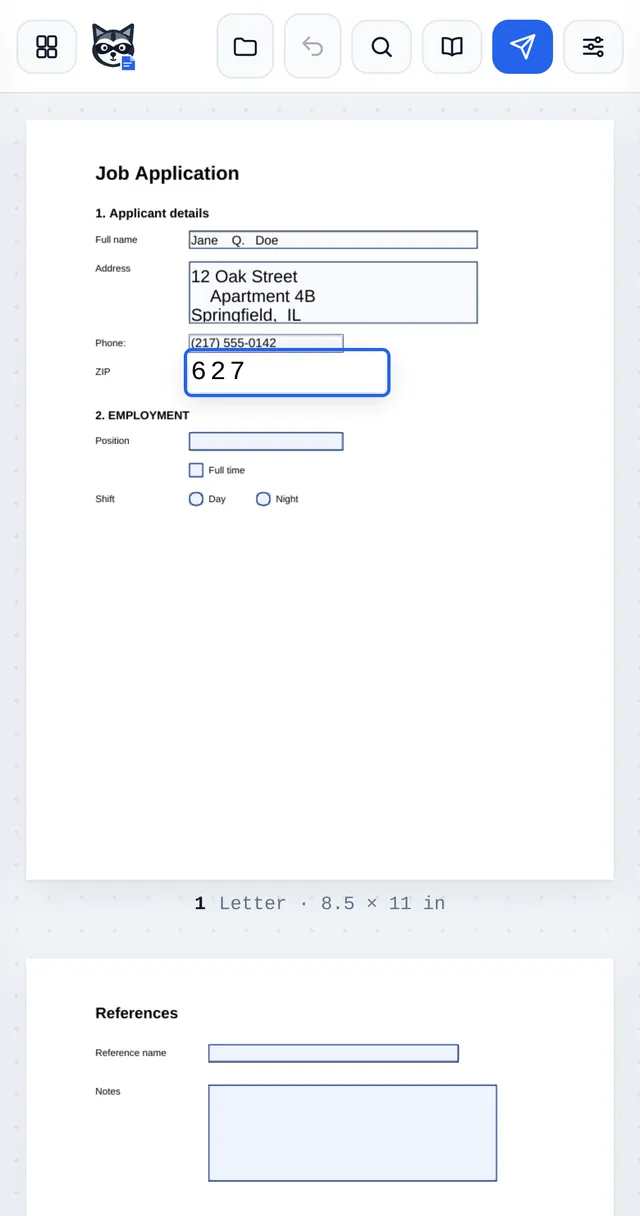
- Fill the fields on the pageTap a highlighted field and type. Press the Enter or Next key to move to the next one. Tap tick boxes and round buttons to select them.
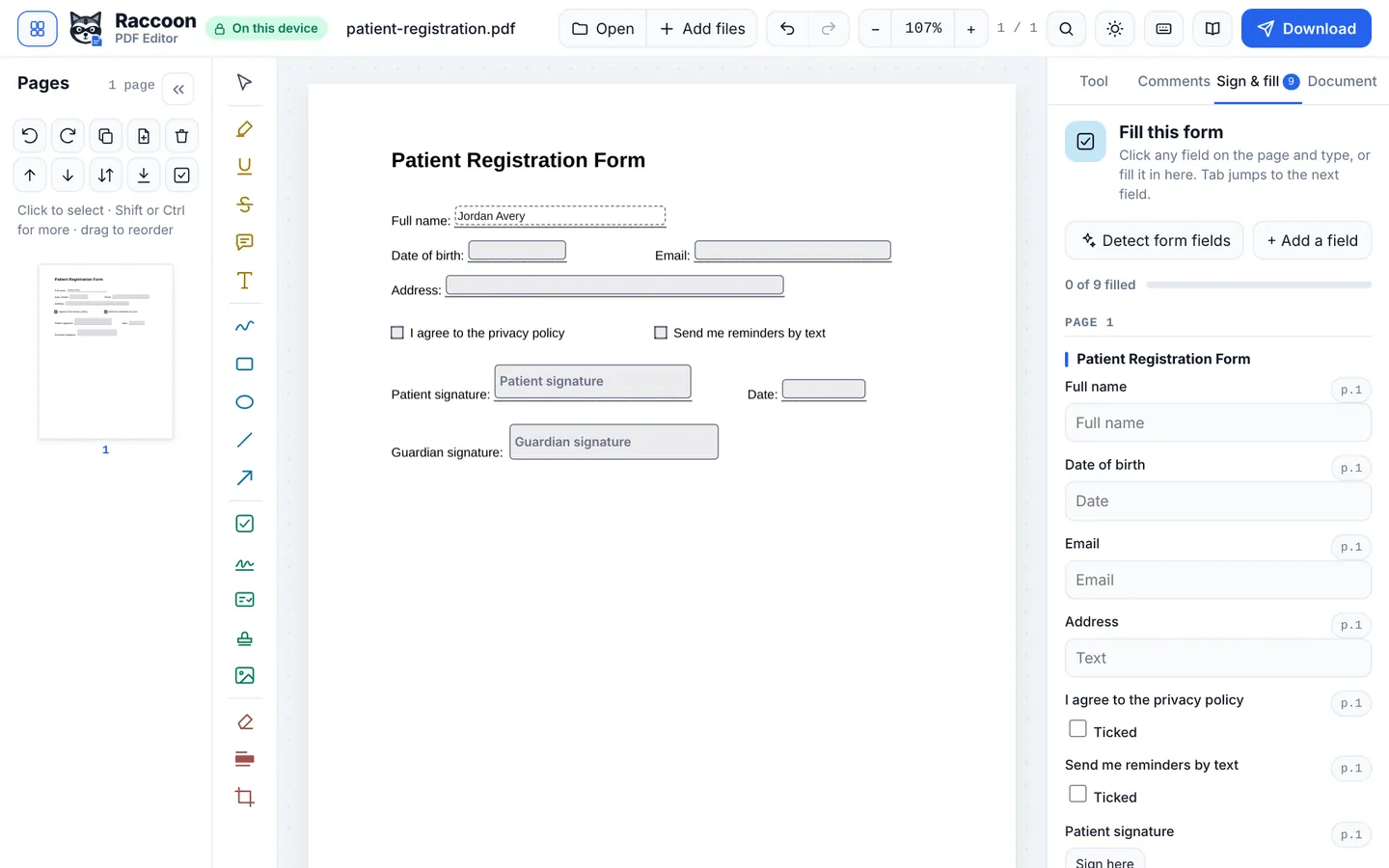
- Check everything in the listOpen the options button at the top right and choose Sign & fill. All fields are listed by page and section with a progress bar, so it is easy to spot anything you missed.
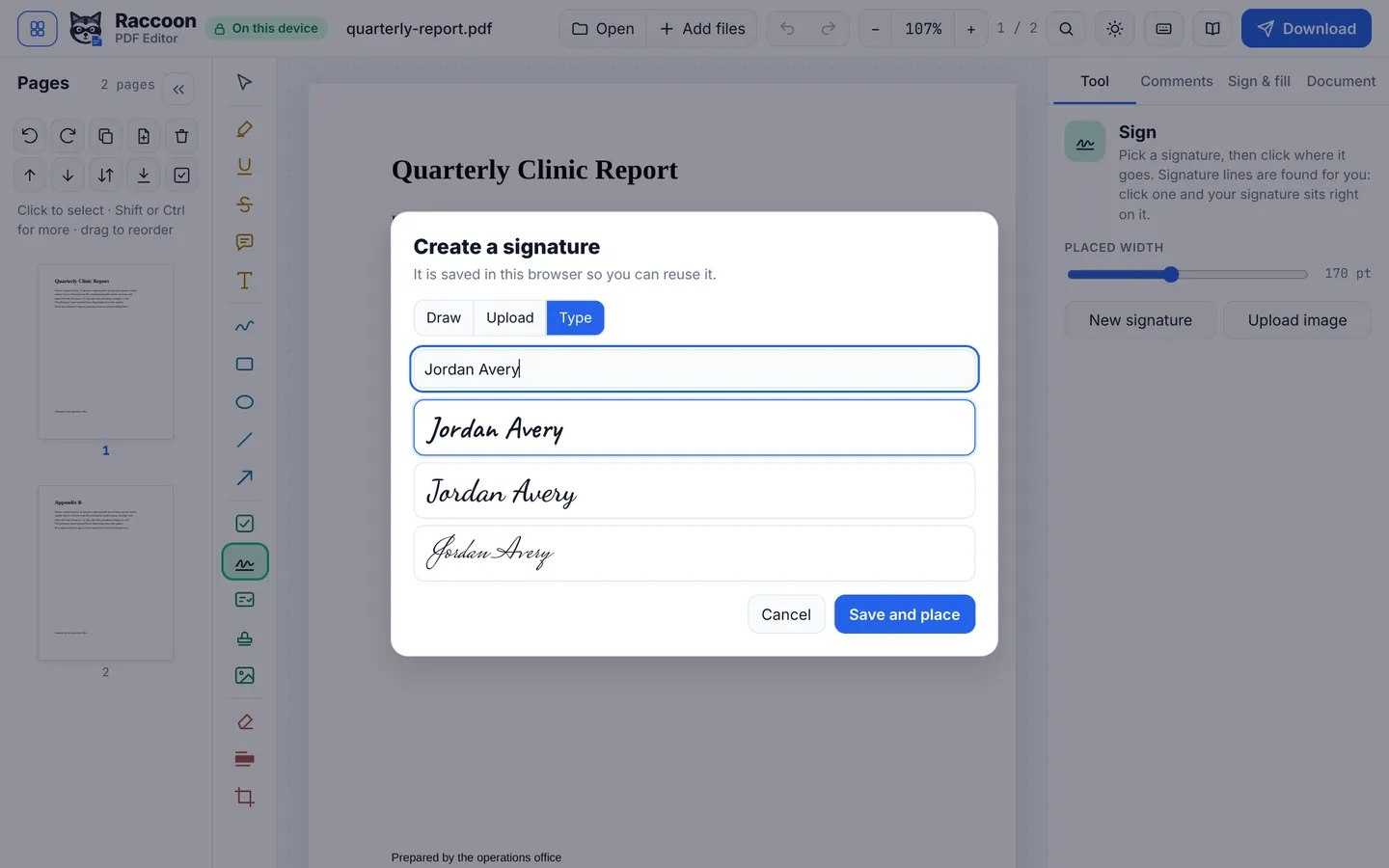
- Add your signaturePick Sign from the bottom toolbar. Draw it, type it, or upload a photo of your signature, then tap where it goes.
- DownloadTap Download. The finished PDF lands in your Downloads folder, ready to send.
Good to know
- Pinch to zoom on small fields. The page stays sharp at any zoom.
- Required fields are outlined in red until you fill them.
- No fields? Tap Detect form fields in Sign & fill to turn the blank lines into fields.
Questions
Which browsers work?
Chrome, Samsung Internet, Firefox, Edge and other modern Android browsers.
Is it really free?
Yes. There is no trial, no watermark and no limit on how many forms you fill.
Is my information private?
Yes. Your form is never uploaded. It is read and saved by the browser on your phone.