Before you start
Job applications, insurance claims and visa paperwork often ask for a single PDF. Raccoon merges as many files as you like, mixes in JPG and PNG photos, and lets you rearrange pages before you save.
Step by step
- Open the first fileGo to raccoonpdf.com/merge-pdf and choose your first PDF.
- Add the othersPress Add files at the top and choose the rest. You can select several at once, including photos.
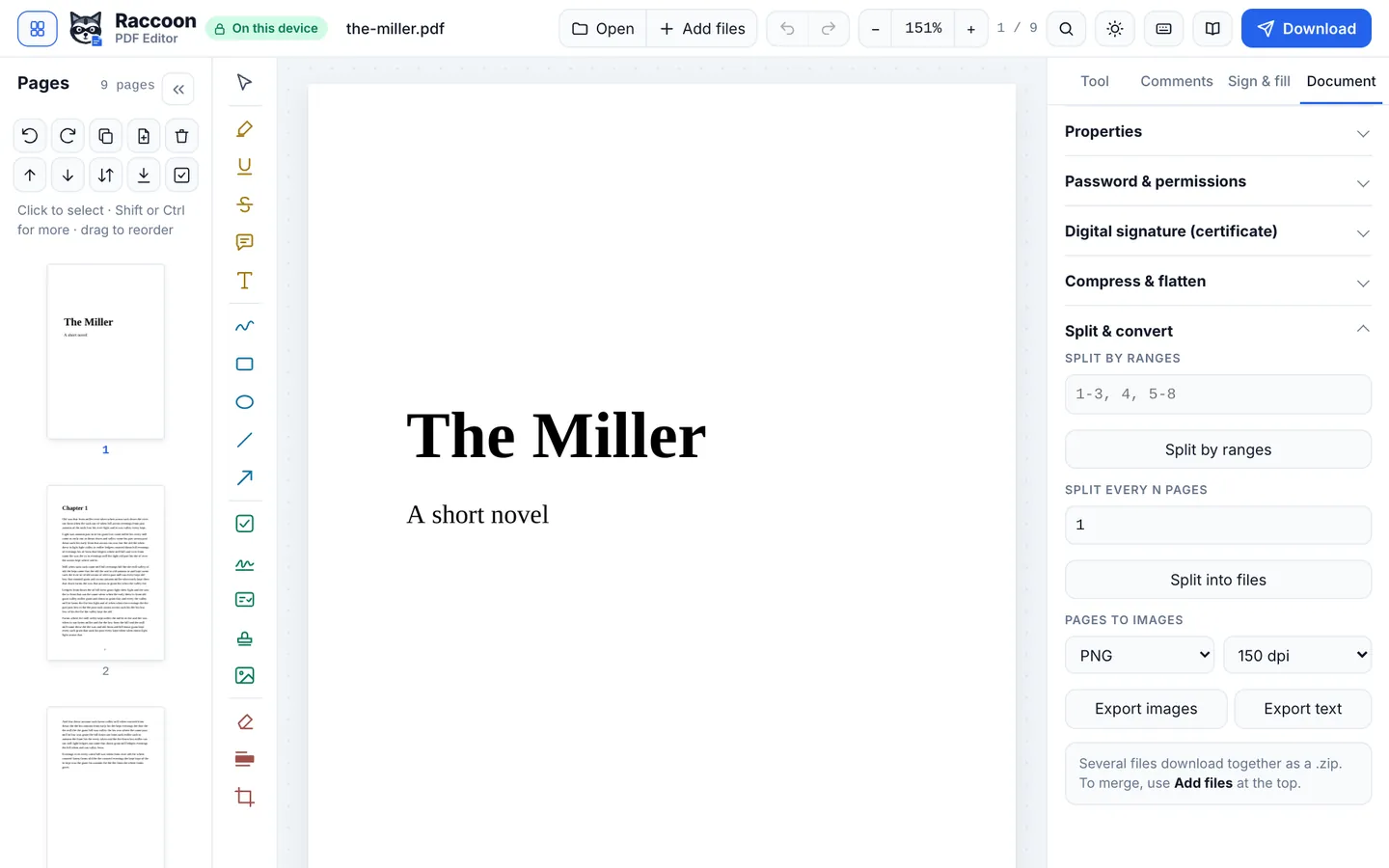
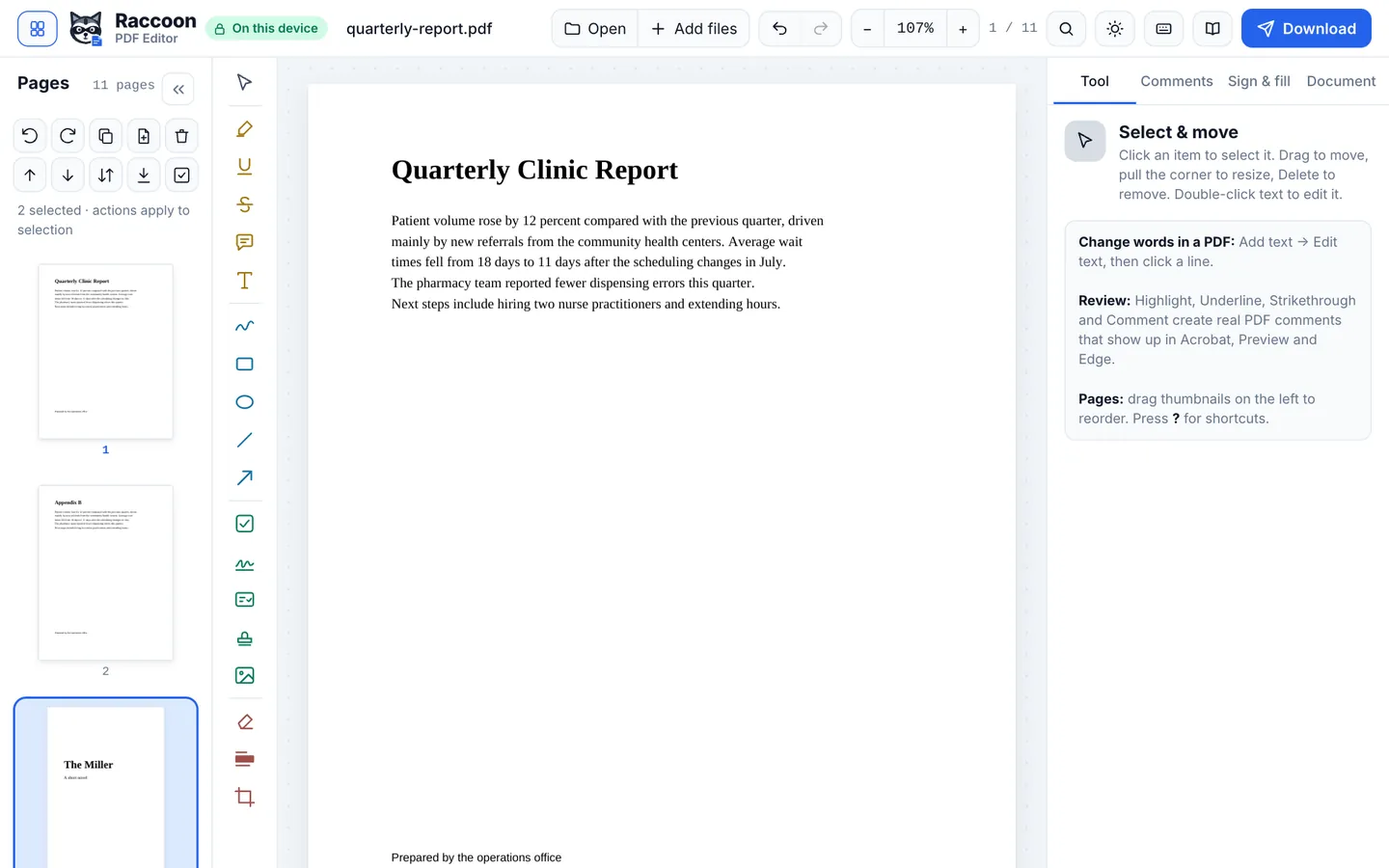
- Put pages in orderDrag the page thumbnails in the Pages panel. Select pages with Shift or Ctrl to move, rotate or delete several at once.
- Download one PDFPress Download. Everything is saved as a single PDF.
Good to know
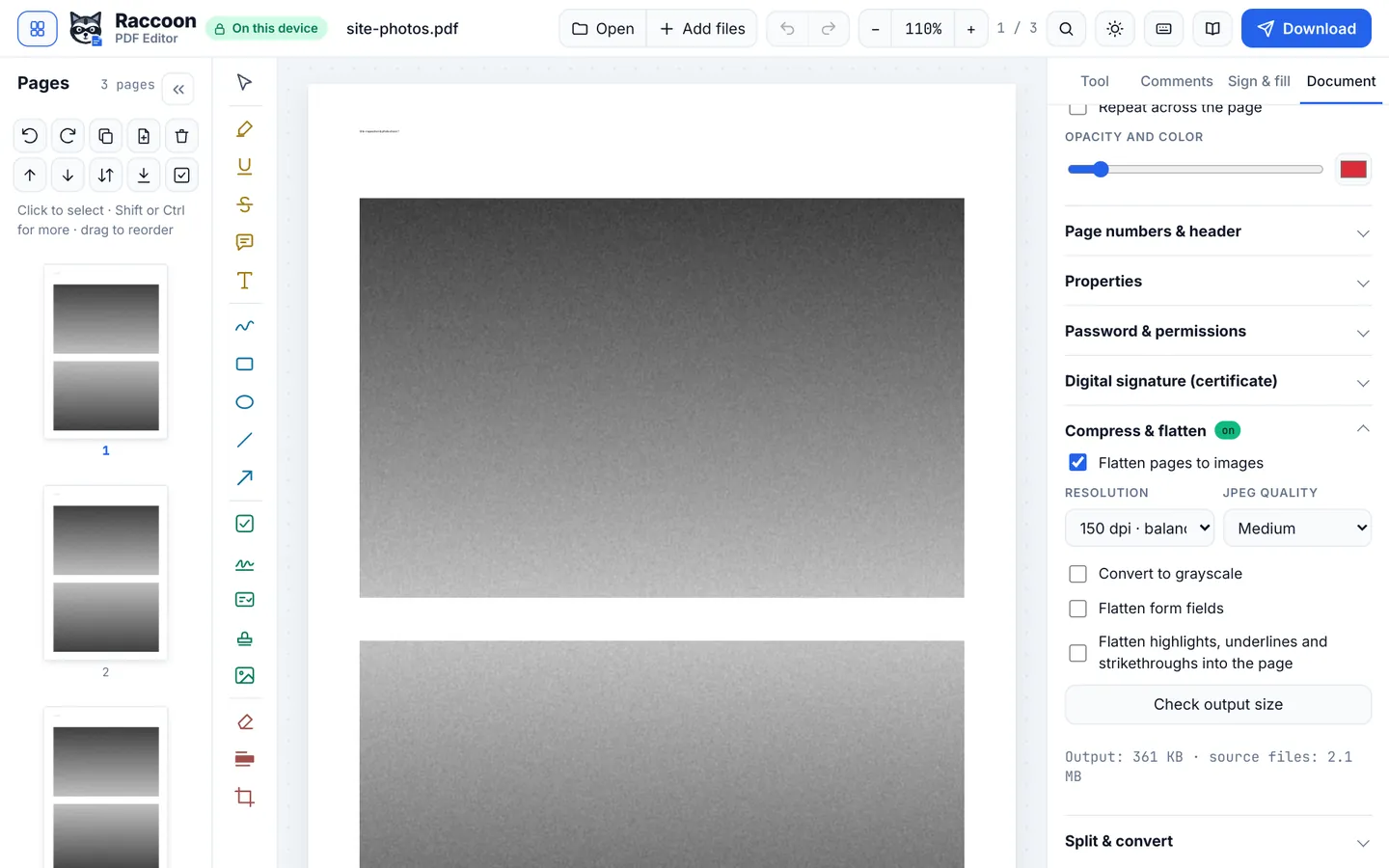
- Large result? Turn on Compress in Document before downloading.
- Add page numbers across the merged file in Document › Page numbers & header.
Questions
Is there a limit on files or size?
No fixed limit. Very large files depend on your device's memory, but hundreds of pages are fine on a normal computer or phone.
Can I merge images and PDFs together?
Yes. JPG, PNG, WebP and other common image formats become pages.
Are my files uploaded?
No. Merging happens in your browser.