Before you start
A fillable PDF has real form fields that anyone can type into in Adobe Reader, a browser or a phone. Making one usually needs Adobe Acrobat Pro.
Raccoon can do it in your browser. Its form detection looks for underlines, boxes, tick boxes and "Signature" labels, and turns them into fields named after the printed labels.
Step by step
- Open your PDFGo to raccoonpdf.com/create-fillable-pdf and choose the file. Word documents need saving as PDF first.
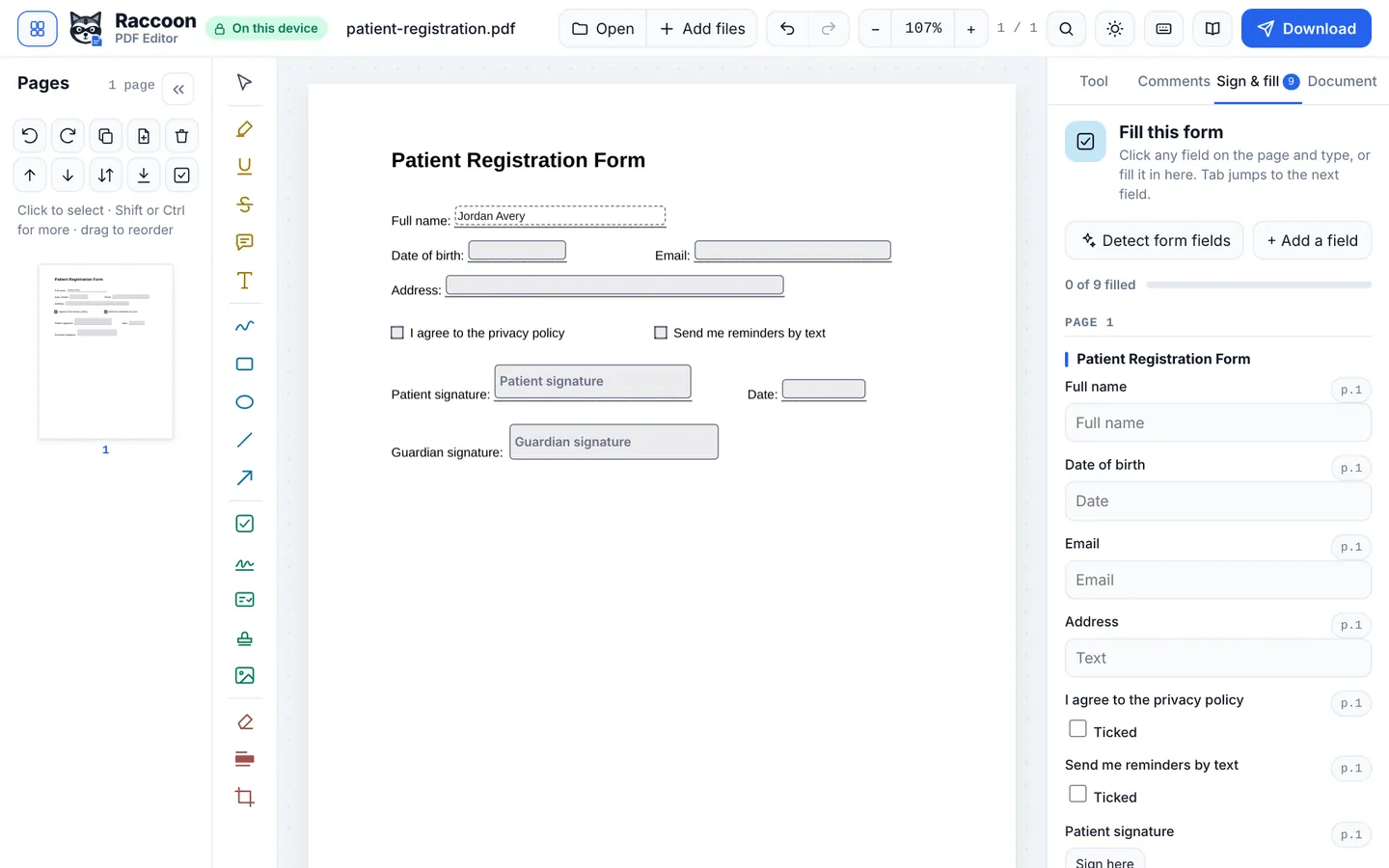
- Detect the fieldsOpen Sign & fill and press Detect form fields. Raccoon adds fields for the blank lines, boxes and signature lines it finds.
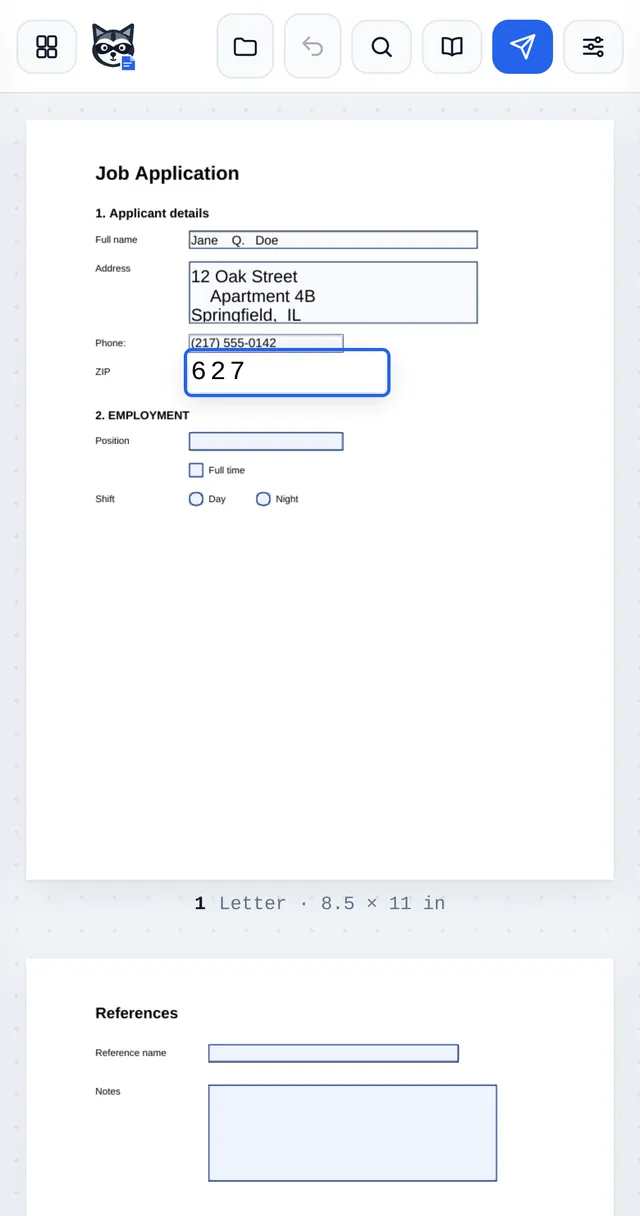
- Add or fix fieldsChoose Form & signer fields, pick a kind (text, tick box, round button, drop-down, date, signature) and click or drag on the page. Select a field to rename it, mark it required or change its options.
- Test itClick the fields and fill them in to check the order and sizes. Tab moves through them in reading order.
- Download the formPress Download. The fields are saved as standard PDF form fields that work in Adobe Reader, Chrome, Edge, Preview and phones.
Good to know
- Field names come from the printed labels, so the data stays readable if someone exports it.
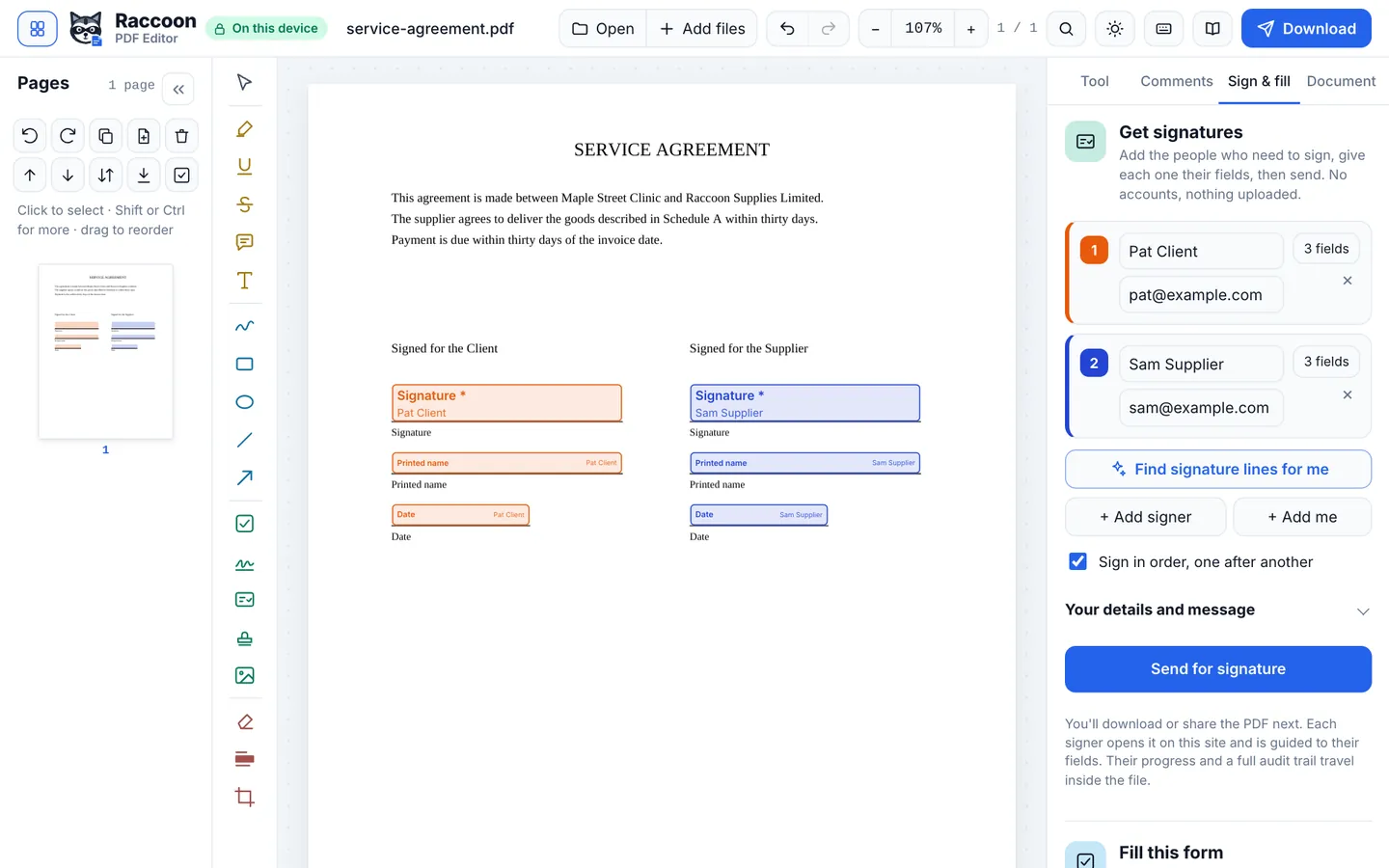
- To collect signatures from specific people, assign signature fields to signers in Request signatures.
- Turn the form back into a flat page at any time with Document › Compress & flatten › Flatten form fields.
Questions
Will the form work in Adobe Reader?
Yes. Raccoon writes standard AcroForm fields, which Adobe Reader and every major PDF viewer support.
Can it detect fields on a scanned form?
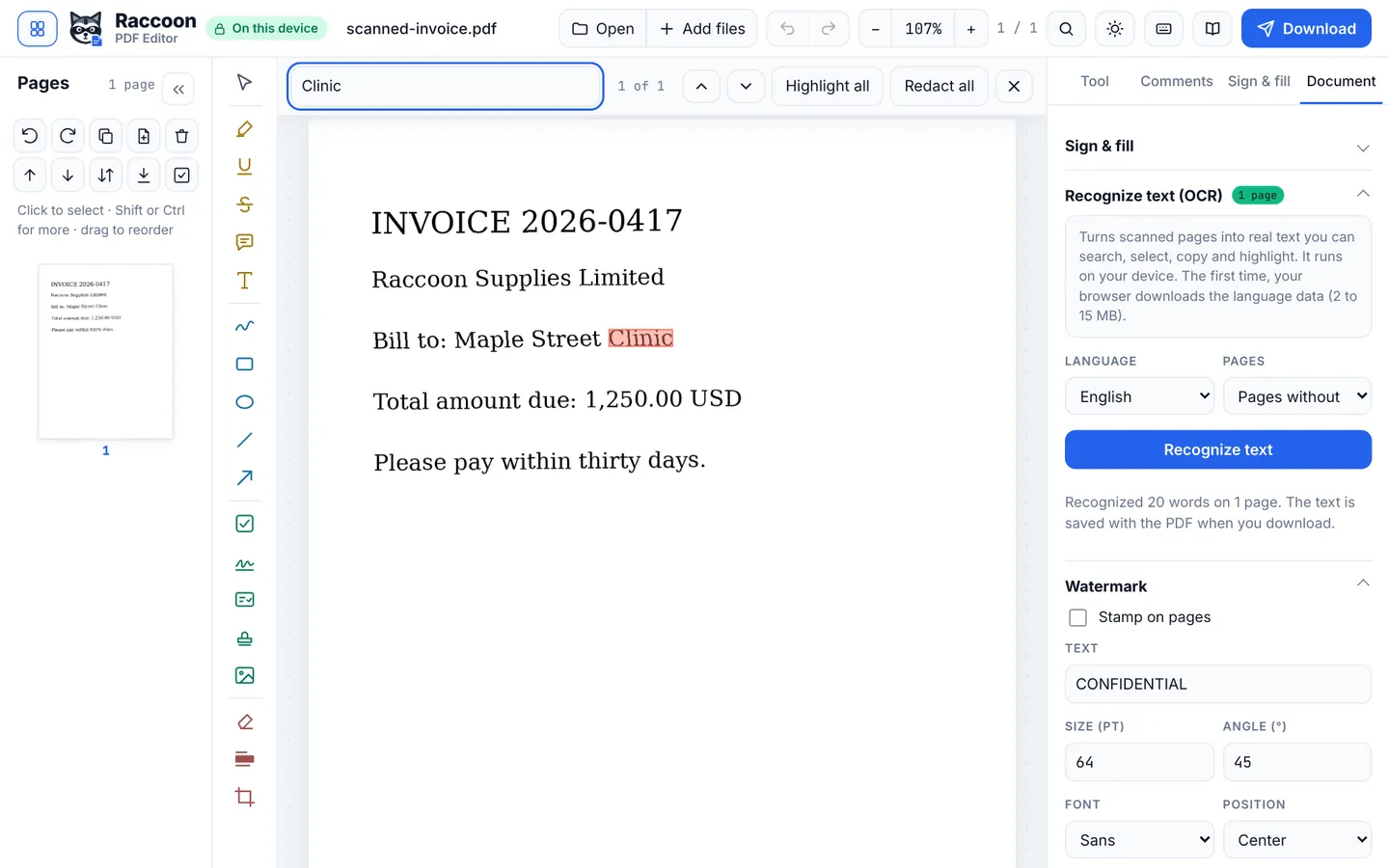
Yes, if the scan has clear lines or boxes. For very faint scans, run Recognize text (OCR) first, then detect fields.
Can I add a drop-down list?
Yes. Choose the drop-down field kind and type the choices, one per line.