Before you start
PDFs are built for printing, not editing, which is why changing a single word normally needs expensive software.
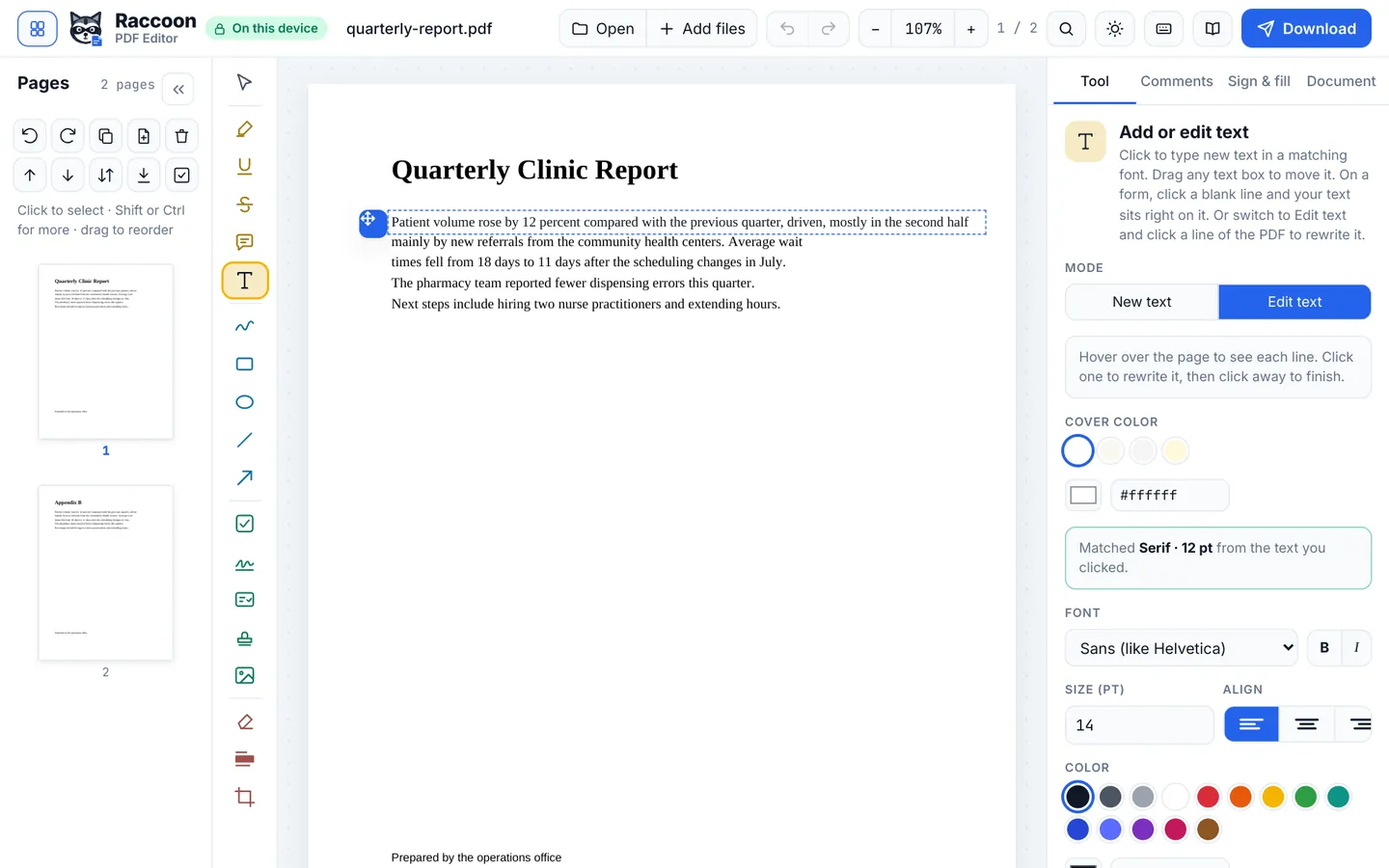
Raccoon reads the font, size and colour of the line you click, covers the old words and sets your new ones to match. You can also add text boxes anywhere, and drag them into place.
Step by step
- Open the PDFGo to raccoonpdf.com/edit-pdf and choose your file.
- Click the line to changeWith Add or edit text, click any line of text. It opens for editing with the same font and size.
- Type your changesEdit as you would in a word processor. Press Escape or click away to finish.
- Add new textClick an empty area to add a text box. Drag the handle to move it while typing, and change font, size and colour in the Tool panel.
- DownloadPress Download for the edited PDF. There is no watermark.
Good to know
- Edits look best on PDFs created from Word, Google Docs or similar. For scans, run OCR first.
- Whiteout hides small things like a stray mark without adding text.
Questions
Will the new text match the original font?
Raccoon picks the closest match from the font, size, weight and colour of the line. Common fonts like Arial, Helvetica and Times match closely.
Can I edit a scanned PDF?
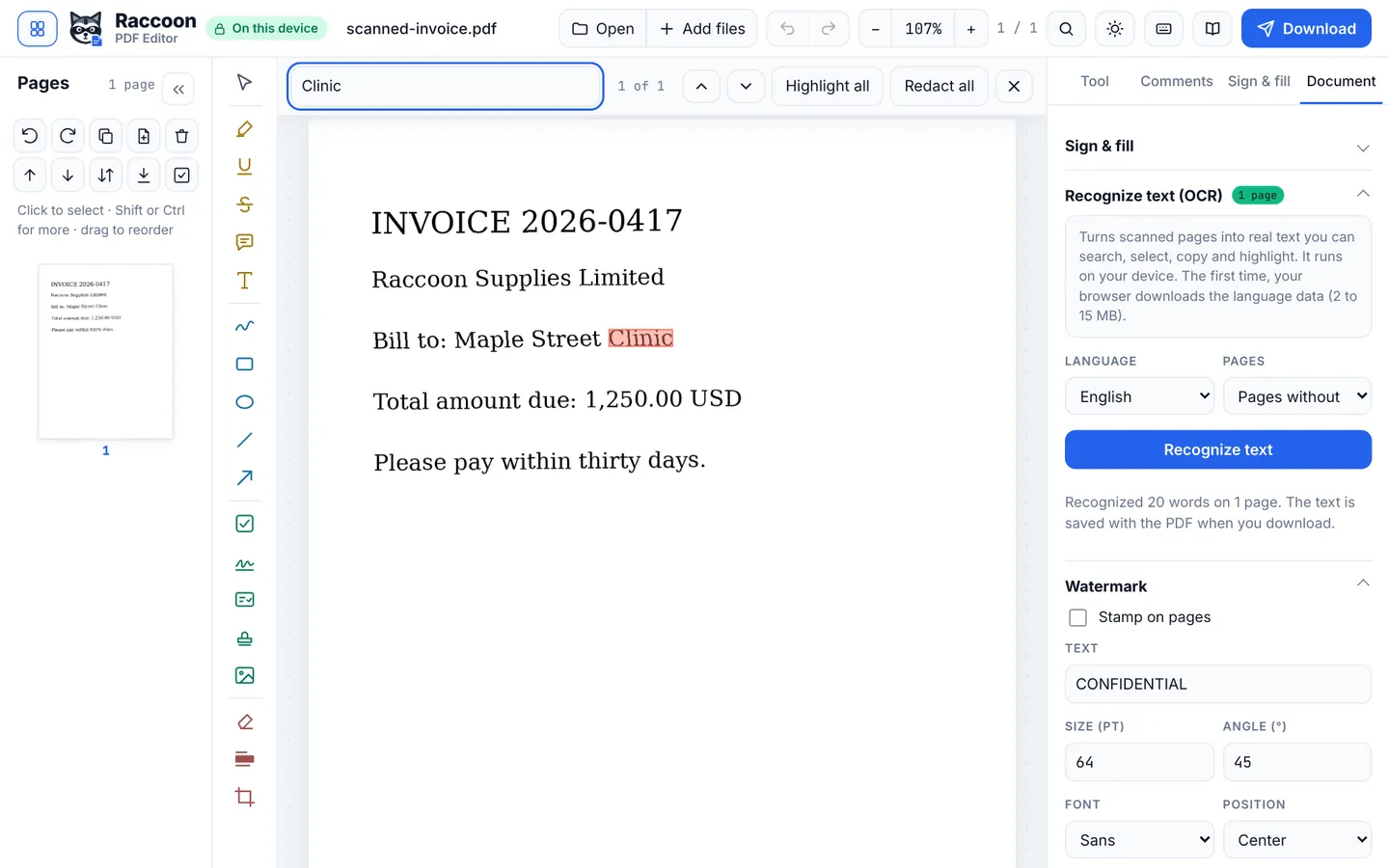
Run Recognize text (OCR) first, then edit the recognised lines.
Is there a watermark?
No. Raccoon never adds a watermark.