Before you start
Scanned contracts, old letters and photos of documents look like text but behave like images. Optical character recognition (OCR) reads the letters and adds a real text layer to the PDF.
Raccoon's OCR runs in your browser in 13 languages, so private scans are never uploaded.
Step by step
- Open the scanGo to raccoonpdf.com/ocr-pdf and choose the PDF or a photo of the page.
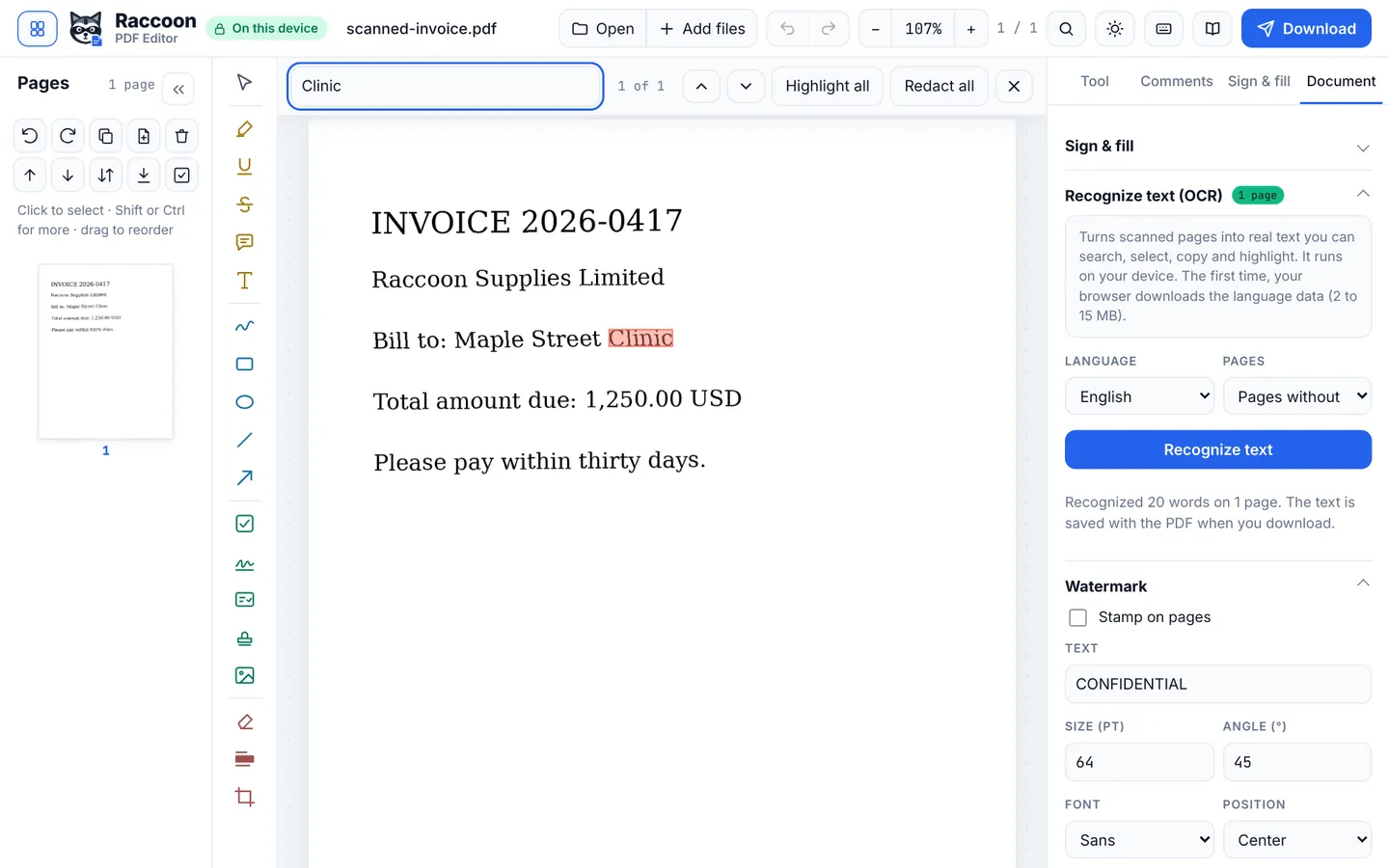
- Recognise the textIn Document › Recognize text (OCR), pick the language and press Recognize text. The first time, your browser downloads the language data (2 to 15 MB).
- Search and selectWhen it finishes, you can search with Ctrl+F, select and copy words, and highlight them.
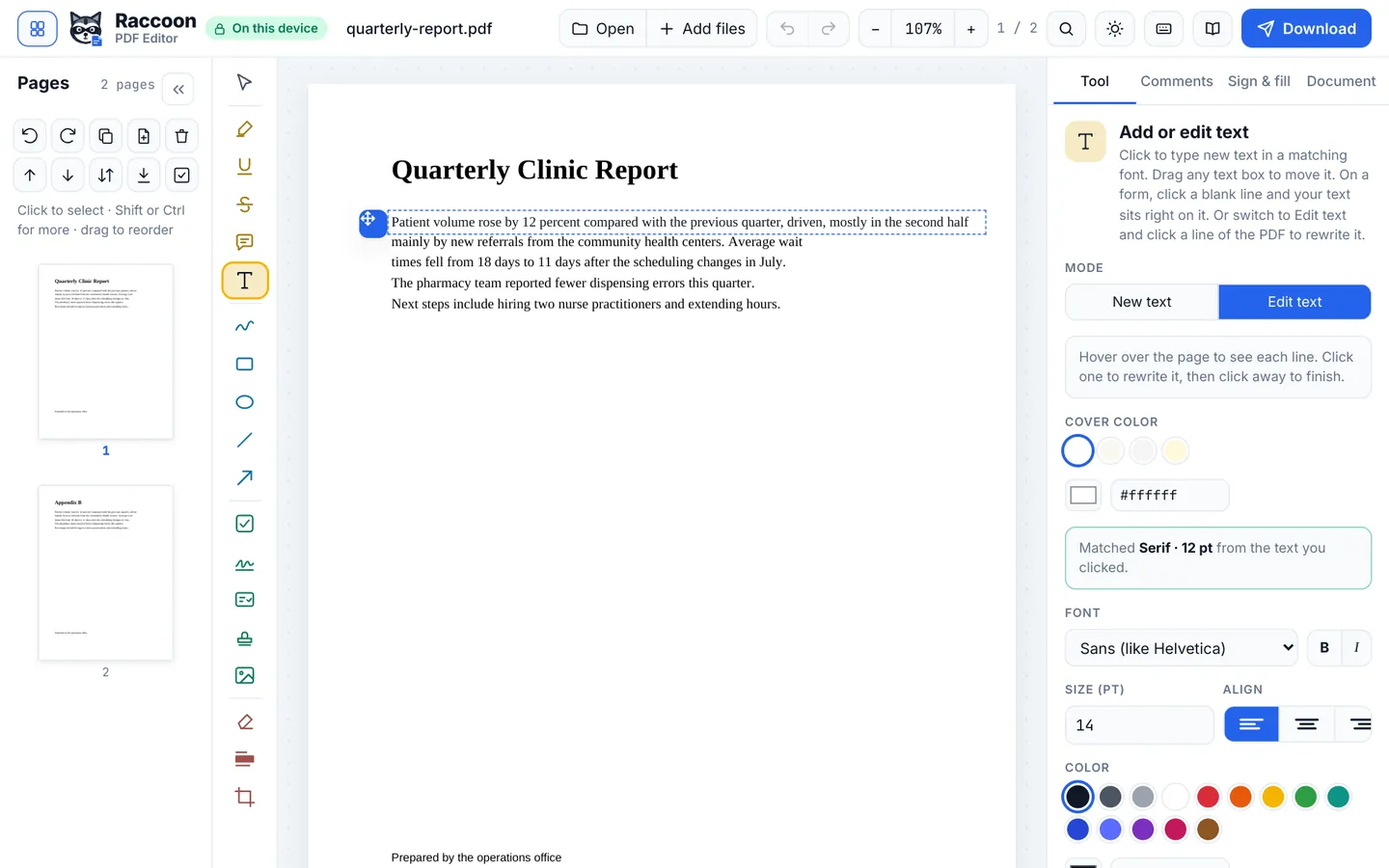
- Change the wordsChoose Add or edit text and click a line to retype it. Raccoon covers the original and sets your words in a similar size.
- DownloadPress Download. The saved PDF keeps the invisible text layer, so it stays searchable everywhere.
Good to know
- Straight, well-lit scans give the best results. Rotate sideways pages first in the Pages panel.
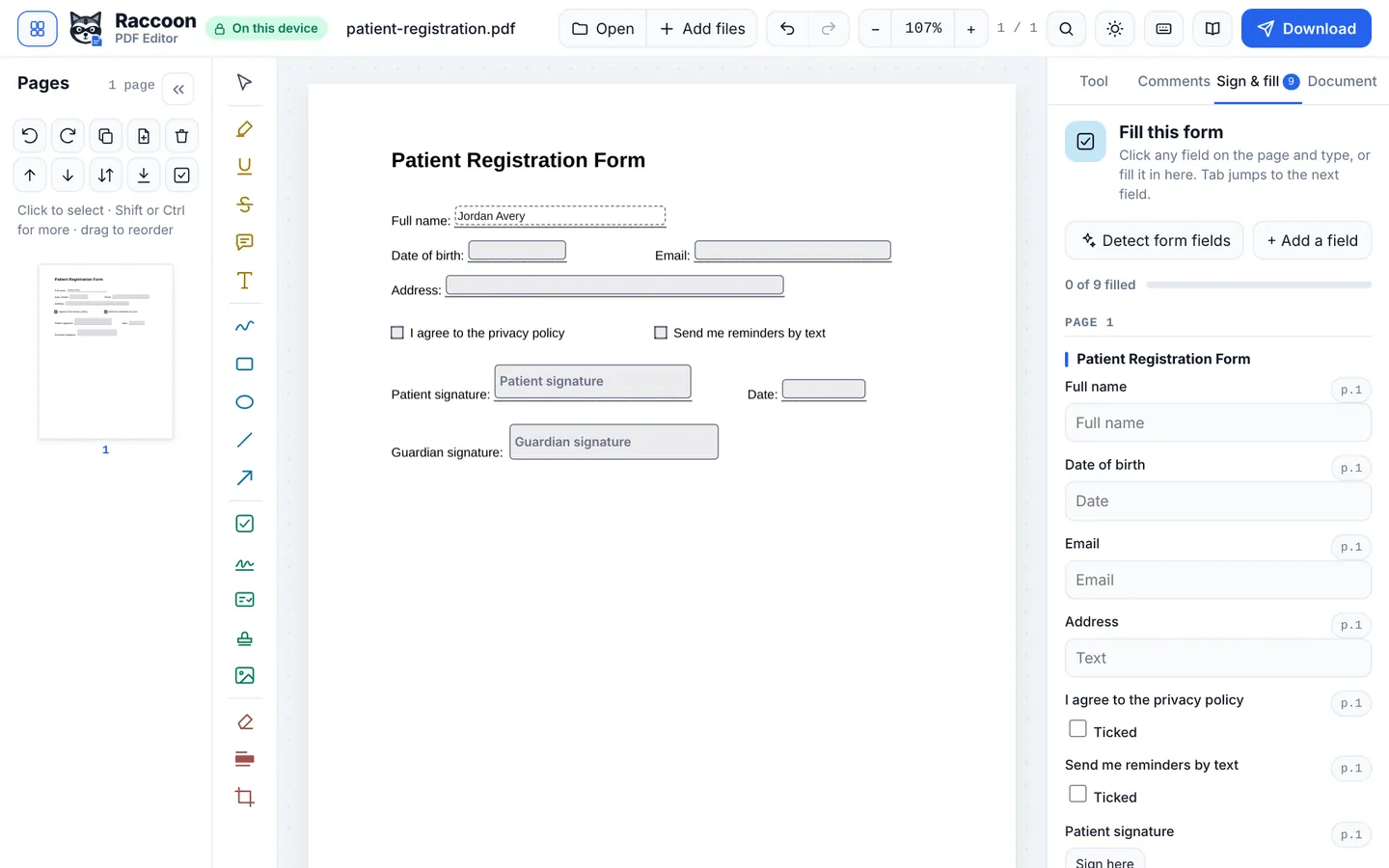
- For forms, run OCR and then Detect form fields.
Questions
Which languages are supported?
English, Spanish, French, German, Italian, Portuguese, Dutch, Russian, Arabic, Hindi, Urdu, Chinese (Simplified) and Japanese.
Is OCR accurate?
On clear printed text, very. Handwriting and very low-resolution photos are much harder for any OCR.
Is my scan uploaded?
No. Only the language data is downloaded. Your document is read on your device.